AirPlay
This guide covers how to integrate AirPlay into your React Native application using @quickplay/rn-qp-nxg-player, including rendering the AirPlay button, detecting connection state changes, and querying AirPlay status programmatically.
Platform: iOS only. AirPlay is not supported on Android or tvOS.
Prerequisites
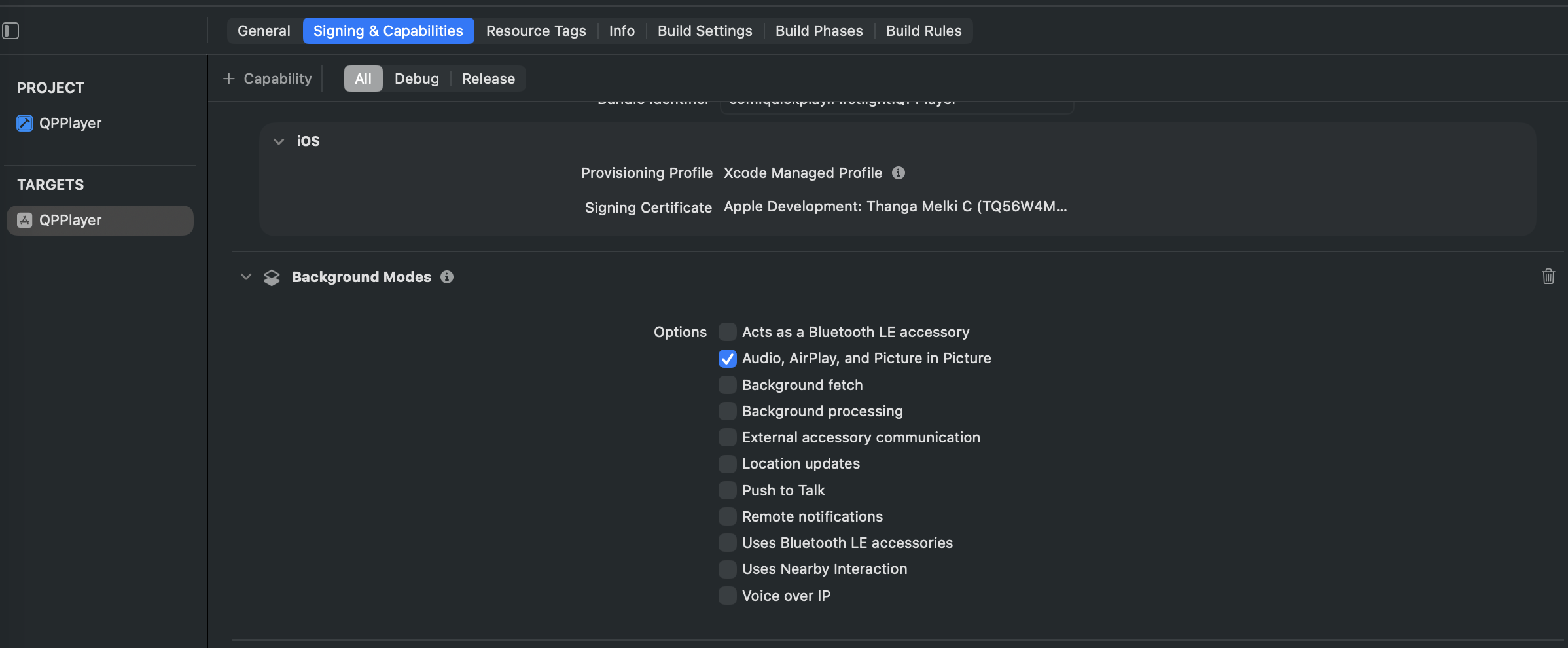
Enable Background Modes for Airplay
Before using any Airplay APIs, enable the required iOS capability in Xcode.
- Open your iOS project in Xcode.
- Select your app target.
- Go to Signing & Capabilities.
- Add the Background Modes capability.
- Enable Audio, AirPlay, and Picture in Picture.
Overview
AirPlay allows users to wirelessly stream video from an iOS device to an Apple TV or AirPlay-compatible display. The SDK exposes:
| Feature | API |
|---|---|
| Native AirPlay route picker button | QpNxgAirplayView |
| React to AirPlay connection changes | onAirplayConnected callback in PlayerAudioRouteListener |
| Query if AirPlay is currently active | player.isAirplayActive() |
| Query if any AirPlay route is connected | deviceInformation.isAirplayRouteConnected() |
1. AirPlay & Playback Behavior
The SDK supports AirPlay 2 for both DRM-protected and non-DRM content.
Playback Modes
AirPlay can be started in either of the following ways:
- Play & Connect – Start playback on the iOS device, then connect to an AirPlay receiver.
- Connect & Play – Connect to an AirPlay receiver first, then start playback.
DRM Playback
For DRM-protected content, the AirPlay receiver requests its own playback license when playback begins.
Important: AirPlay license authorizations are valid for 30 seconds. If the authorization expires before AirPlay playback starts, your application must refresh the license before providing it to the player.
Player Lifecycle
During AirPlay playback:
- The receiver device performs the actual playback.
- The player on the iOS device remains responsible for playback feedback and platform integrations.
- Disposing the player instance does not stop AirPlay playback.
- Closing the app stops AirPlay playback.
To ensure AirPlay-related features continue working, keep the player instance alive for the duration of the AirPlay session.
Personalization Support
Features such as bookmarks, stream concurrency, and heartbeat reporting continue to function during AirPlay as long as the player instance remains active on the originating device.
2. AirPlay Button (QpNxgAirplayView)
QpNxgAirplayView is a native iOS AVRoutePickerView wrapped as a React Native component. Tapping it presents the system AirPlay device picker. The button tint color is white by default and is set at the native layer — it cannot be customized via props.
Import
import { QpNxgAirplayView } from '@quickplay/rn-qp-nxg-player';
Render
Render it inside your player controls, guarded by a platform check:
import { Platform } from 'react-native';
import { QpNxgAirplayView } from '@quickplay/rn-qp-nxg-player';

{Platform.OS === 'ios' && (
  <QpNxgAirplayView
    // add styles if required.
  />
)}
The button automatically reflects the current AirPlay availability and active state using the system's native appearance.
3. AirPlay Button & Player UI Modes
AirPlay button placement depends on which player UI mode is active, controlled by canUseCustomPlayerControls in QPPlayerManager.
When canUseCustomPlayerControls is true — Native Controls
player.playWithNativeControls() presents VideoPlayerViewController — a fully native fullscreen player UI. This screen has its own built-in AirPlay button (AVRoutePickerView) managed entirely by the native layer via airPlayButtonTapped() in VideoPlayerViewController.
No additional wiring is needed from the React Native side.
When canUseCustomPlayerControls is false — Custom RN Controls
QpNxgPlaybackView is rendered inline. There is no built-in AirPlay button — you must add QpNxgAirplayView manually in your player controls UI.
// Add this inside your custom player controls
{Platform.OS === 'ios' && (
  <QpNxgAirplayView
    // add styles if required.
  />
)}
UI Mode Comparison
Native Controls (canUseCustomPlayerControls: true) | Custom RN Controls (canUseCustomPlayerControls: false) | |
|---|---|---|
| Play API to call | player.playWithNativeControls() | player.play() or player.playInline() |
| AirPlay Button | Built-in, managed by native layer | Must add QpNxgAirplayView manually |
4. Listening for AirPlay Connection Changes
Implement the PlayerAudioRouteListener interface and register it on your player instance to receive callbacks whenever the audio route changes or AirPlay connects or disconnects.
Interface
export interface PlayerAudioRouteListener {
  onAudiorouteChanged(fromPort: string, toPort: string): void;
  onAirplayConnected(isAirplayConnected: boolean): void;
}
Note: Both
onAudiorouteChangedandonAirplayConnectedare fired from the same underlying native delegate methodplayerAudioRouteDidChange. They both fire together whenever the audio route changes.
Register the Listener
import { Player, PlayerAudioRouteListener } from '@quickplay/rn-qp-nxg-player';

const audioRouteListener: PlayerAudioRouteListener = {
  onAudiorouteChanged(fromPort: string, toPort: string): void {
    console.log(`Audio route changed: ${fromPort} → ${toPort}`);
  },

  async onAirplayConnected(isAirplayConnected: boolean): Promise<void> {
    if (isAirplayConnected) {
      console.log('AirPlay connected');
      // Adjust UI — e.g. show AirPlay active indicator
    } else {
      console.log('AirPlay disconnected');
    }
  },
};

// Add the listener after creating the player
player.addListener(audioRouteListener);

// Remove the listener when the player is disposed
player.removeListener(audioRouteListener);
5. Checking AirPlay Status on the Player
Use player.isAirplayActive() to programmatically check whether AirPlay streaming is currently active for a specific player instance. This calls player.isAirplayRouteActive on the native player.
const isActive: boolean = await player.isAirplayActive();
if (isActive) {
  // AirPlay is currently streaming for this player
}
6. Checking AirPlay Route Connection (Device Level)
Use deviceInformation.isAirplayRouteConnected() to check whether an AirPlay output route is connected at the device level, independent of any player instance. This checks AVAudioSession.sharedInstance().currentRoute directly.
import { deviceInformation } from '@quickplay/rn-qp-nxg-player';

const isConnected: boolean = await deviceInformation.isAirplayRouteConnected();
if (isConnected) {
  // An AirPlay-compatible output route is currently active on the device
}
Difference between isAirplayActive() and isAirplayRouteConnected():
player.isAirplayActive() | deviceInformation.isAirplayRouteConnected() | |
|---|---|---|
| Scope | Specific player instance | Device-level audio session |
| Requires player | Yes | No |
| Use case | Check if this player is streaming via AirPlay | Check if any AirPlay route is active on device |
7. Complete Example
import React, { useEffect, useRef, useState } from 'react';
import { Platform, View } from 'react-native';
import {
  QpNxgAirplayView,
  QpNxgPlaybackView,
  createPlayer,
  Player,
  PlaybackStateValue,
  BufferingStateValue,
  SeekingStateValue,
  PlayerConfig,
} from '@quickplay/rn-qp-nxg-player';

export function PlayerScreen({ playerConfig }: { playerConfig: PlayerConfig }) {
  const playerRef = useRef<Player | null>(null);
  const [playerID, setPlayerID] = useState(-1);
  const [isAirplayConnected, setIsAirplayConnected] = useState(false);

  useEffect((): any => {
    const playerListener = {
      onStateChanged(
        playbackState: PlaybackStateValue,
        bufferingState: BufferingStateValue,
        seekingState: SeekingStateValue,
      ): void {
        console.log(`State: ${playbackState}`);
      },

      onAudiorouteChanged(fromPort: string, toPort: string): void {
        console.log(`Audio route: ${fromPort} → ${toPort}`);
      },

      async onAirplayConnected(connected: boolean): Promise<void> {
        setIsAirplayConnected(connected);
      },
    };

    async function preparePlayer() {
      const player = await createPlayer(playerConfig);
      playerRef.current = player;
      setPlayerID(player.getNativeID());
      player.addListener(playerListener);
      await player.play();
    }

    preparePlayer();

    return async function cleanup() {
      const player = playerRef.current;
      if (player != null) {
        playerRef.current = null;
        await player.stop();
        player.removeListener(playerListener);
        await player.dispose();
      }
    };
  }, [playerConfig]);

  return (
    <View style={{ flex: 1 }}>
      <QpNxgPlaybackView playerID={playerID} style={{ width: '100%', aspectRatio: 16 / 9 }} />

      {/* AirPlay button — only needed in custom RN controls mode */}
      {Platform.OS === 'ios' && (
        <QpNxgAirplayView
          style={{ width: 32, height: 32 }}
          hitSlop={{ top: 10, bottom: 10, left: 10, right: 10 }}
        />
      )}
    </View>
  );
}
Limitations
- AirPlay is iOS only.
QpNxgAirplayView,isAirplayActive(),isAirplayRouteConnected(), andonAirplayConnectedare not available on Android or tvOS. - SMPTE-TT subtitles (both
SMPTE_ID3andSMPTE_SIDECARtypes) are not supported during AirPlay playback.