Picture-in-Picture (PiP)
This guide covers how to integrate Picture-in-Picture (PiP) into your React Native application using @quickplay/rn-qp-nxg-player, including setup, programmatic control, auto-start behavior, and handling lifecycle events.
Platform: iOS only.
Prerequisites
Enable Background Modes for Picture-in-Picture
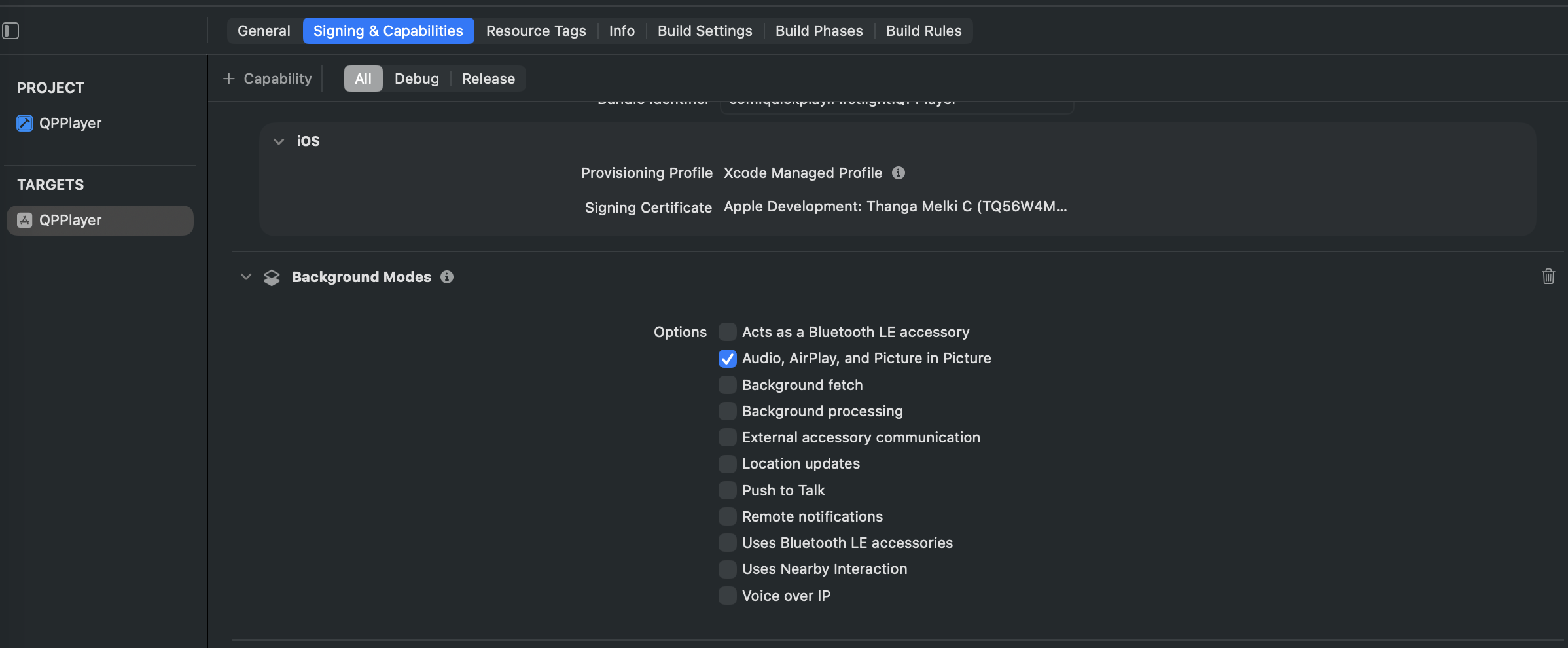
Before using any PiP APIs, enable the required iOS capability in Xcode.
- Open your iOS project in Xcode.
- Select your app target.
- Go to Signing & Capabilities.
- Add the Background Modes capability.
- Enable Audio, AirPlay, and Picture in Picture.
Overview
Picture-in-Picture allows users to continue watching video in a floating overlay while switching to other apps. The SDK exposes:
| Feature | API |
|---|---|
| Start PiP | player.startPictureInPicture() |
| Stop PiP | player.stopPictureInPicture() |
| Auto-start on app background | player.allowAutoStartPiPFromInline() |
| Check if PiP is active | player.isPiPActive() |
| Lifecycle callbacks | PlayerPictureInPictureListener |
| Keep PiP alive during CSAI ads | shouldSupportPIP: true in PlayerConfig |
Note: No configuration flag is required to enable general PiP. The APIs above work directly once the player is created.
shouldSupportPIPis a separate flag only relevant when using CSAI/Google IMA ads — see Section 6.
1. Player UI Modes & PiP Button Behavior
PiP behavior differs depending on which player UI mode is active. The SDK supports two modes controlled by the canUseCustomPlayerControls flag in QPPlayerManager.
When canUseCustomPlayerControls is true — Native Controls
player.playWithNativeControls() must be called to present VideoPlayerViewController — a fully native fullscreen player UI built with AVKit.
This native screen has its own built-in PiP button that is shown or hidden automatically based on device support. When tapped, it internally calls:
// Start PiP
player.startPictureInPicture()

// Stop PiP (if already active)
player.stopPictureInPicture()
No additional wiring is needed from the React Native side — the native screen manages the entire PiP lifecycle.
Important: You must call
player.playWithNativeControls()to get the native UI. Callingplayer.play()orplayer.playInline()will not present the native UI even ifcanUseCustomPlayerControlsistrue.
When canUseCustomPlayerControls is false — Custom RN Controls
QpNxgPlaybackView is rendered inline inside your React Native PlayerScreen using player.play() or player.playInline(). This screen has no built-in PiP button — you are responsible for adding one and wiring it to the SDK APIs manually.
Auto-Start PiP (App Backgrounded)
Call allowAutoStartPiPFromInline() once playback starts. This sets canStartPictureInPictureAutomaticallyFromInline = true on the underlying AVKit player, so iOS triggers PiP automatically when the user backgrounds the app — no button tap needed.
onStateChanged(playbackState: PlaybackStateValue, ...): void {
  if (playbackState === 'STARTED') {
    playerRef.current?.allowAutoStartPiPFromInline();
  }
},
Manual PiP Button
Add an explicit PiP toggle button in your player controls UI:
{Platform.OS === 'ios' && (
  <TouchableOpacity
    onPress={async () => {
      const player = playerRef.current;
      if (player == null) return;
      const isActive = await player.isPiPActive();
      if (isActive) {
        await player.stopPictureInPicture();
      } else {
        await player.startPictureInPicture();
      }
    }}
  >
    <Icon name="picture-in-picture" size={24} color="white" />
  </TouchableOpacity>
)}
APIs Linked to the PiP Button
| User Action | API Called | What it does |
|---|---|---|
| Tap PiP button | player.startPictureInPicture() | Starts PiP if supported and possible |
| Tap PiP button (PiP already active) | player.stopPictureInPicture() | Stops the active PiP window |
| App goes to background | Auto via allowAutoStartPiPFromInline() | iOS triggers PiP automatically |
| Check current PiP state | player.isPiPActive() | Returns true if PiP is currently active |
UI Mode Comparison
Native Controls (canUseCustomPlayerControls: true) | Custom RN Controls (canUseCustomPlayerControls: false) | |
|---|---|---|
| Play API to call | player.playWithNativeControls() | player.play() or player.playInline() |
| Player UI | VideoPlayerViewController (AVKit) | QpNxgPlaybackView (React Native) |
| PiP Button | Built-in, auto shown/hidden | Must be added manually |
| PiP APIs wired by | Native layer | Your RN code |
2. Listening for PiP Lifecycle Events
Implement the PlayerPictureInPictureListener interface and register it on your player to receive callbacks for all PiP state transitions. These callbacks fire in both UI modes.
Interface
export interface PlayerPictureInPictureListener {
  onPictureInPictureStarted(): void;
  onPictureInPictureStopped(): void;
  onPictureInPictureFailed(error: PlatformError): void;
  onPictureInPictureEnded(): void;
}
| Callback | Description |
|---|---|
onPictureInPictureStarted | PiP window has become visible |
onPictureInPictureStopped | PiP has stopped but playback may continue inline |
onPictureInPictureFailed | PiP failed to start; the error param contains details |
onPictureInPictureEnded | PiP session has fully ended and the player is dismissed |
Register the Listener
import { Player, PlayerPictureInPictureListener, PlatformError } from '@quickplay/rn-qp-nxg-player';

const pipListener: PlayerPictureInPictureListener = {
  onPictureInPictureStarted(): void {
    console.log('PiP started');
  },
  onPictureInPictureStopped(): void {
    console.log('PiP stopped');
  },
  onPictureInPictureFailed(error: PlatformError): void {
    console.warn('PiP failed to start', error);
  },
  onPictureInPictureEnded(): void {
    console.log('PiP ended — player dismissed');
  },
};

// Add after the player is created
player.addListener(pipListener);

// Remove when the player is disposed
player.removeListener(pipListener);
3. Starting and Stopping PiP
Use player.startPictureInPicture() and player.stopPictureInPicture() to control PiP programmatically. The SDK only starts PiP if the device supports it and PiP is possible at that moment.
Note: These APIs are only relevant when using custom RN controls (
canUseCustomPlayerControls: false). In native controls mode, the built-in PiP button handles this automatically.
// Start PiP
await player.startPictureInPicture();

// Stop PiP
await player.stopPictureInPicture();
4. Auto-Start PiP When Backgrounded
Call player.allowAutoStartPiPFromInline() after playback starts to enable automatic PiP when the user moves the app to the background. This sets canStartPictureInPictureAutomaticallyFromInline = true on the underlying AVKit player.
import { PlaybackStateValue } from '@quickplay/rn-qp-nxg-player';

// Inside your PlayerStateListener
onStateChanged(playbackState: PlaybackStateValue, ...): void {
  if (playbackState === 'STARTED') {
    player.allowAutoStartPiPFromInline();
  }
},
5. Checking PiP Status
Use player.isPiPActive() to query whether PiP is currently active for a specific player instance.
const isActive: boolean = await player.isPiPActive();
if (isActive) {
  // Player is currently in PiP mode
}
6. PiP with CSAI Ads
Restricting Seek During Ads in PiP
During ad playback, call player.setRequiresLinearPlayback(true) to prevent the user from seeking via the PiP controls. Reset it to false when the ad ends.
// Ad started (onAdBreakStart callback)
await player.setRequiresLinearPlayback(true);

// Ad ended (onAdBreakEnd callback)
await player.setRequiresLinearPlayback(false);
Keeping PiP Alive Across CSAI Preroll → Content Transition
When using Google IMA CSAI ads, set shouldSupportPIP: true in your PlayerConfig to keep the PiP window open after a preroll ad finishes and seamlessly transition back to main content playback.
const playerConfig: PlayerConfig = {
  // ... other config
  shouldSupportPIP: true, // Only relevant when using CSAI/Google IMA ads
};
Important:
shouldSupportPIPhas no effect on non-ad players. It is only passed internally to the Google IMA ad player to control PiP behaviour during the preroll→content transition.
Warning: To support this behaviour, the SDK internally sets
allowRepeatPlayback(allow: true)on the content player when PiP mode is active. Do not override this preference viaplayer.set(preferences: [.allowRepeatPlayback(allow: false)])while PiP is enabled, as it will cause the PiP window to close when the preroll ad ends.If you need to reset or modify playback preferences, do so only when PiP is not active, or ensure
allowRepeatPlayback(allow: true)is re-applied afterwards.
7. Complete Example
Custom RN Controls Mode (canUseCustomPlayerControls: false)
Call player.play() or player.playInline(). You must add the PiP button manually and wire it to the SDK APIs.
import {
  createPlayer,
  Player,
  PlayerPictureInPictureListener,
  PlayerConfig,
  PlaybackStateValue,
  PlatformError,
} from '@quickplay/rn-qp-nxg-player';
import { Platform, TouchableOpacity } from 'react-native';
import Icon from 'react-native-vector-icons/MaterialIcons';

useEffect((): any => {
  const playerListener = {
    onStateChanged(playbackState: PlaybackStateValue): void {
      if (playbackState === 'STARTED') {
        // Enable auto-start PiP when app is backgrounded
        playerRef.current?.allowAutoStartPiPFromInline();
      }
    },
    onPictureInPictureStarted() {
      console.log('PiP started');
      // Optionally hide your inline player UI
    },
    onPictureInPictureStopped() {
      console.log('PiP stopped');
      // Restore inline player UI
    },
    onPictureInPictureFailed(error: PlatformError) {
      console.warn('PiP failed', error);
    },
    onPictureInPictureEnded() {
      console.log('PiP ended');
    },
    onAdBreakStart() {
      playerRef.current?.setRequiresLinearPlayback(true);
    },
    onAdBreakEnd() {
      playerRef.current?.setRequiresLinearPlayback(false);
    },
  };

  const player = await createPlayer(playerConfig);
  playerRef.current = player;
  player.addListener(playerListener);

  return () => {
    await player.stop();
    player.removeListener(playerListener);
    await player.dispose();
  };
}, [playerConfig]);

// PiP toggle button — add this inside your player controls UI
const PiPButton = () => (
  Platform.OS === 'ios' ? (
    <TouchableOpacity
      onPress={async () => {
        const player = playerRef.current;
        if (player == null) return;
        const isActive = await player.isPiPActive();
        if (isActive) {
          await player.stopPictureInPicture();
        } else {
          await player.startPictureInPicture();
        }
      }}
    >
      <Icon name="picture-in-picture" size={24} color="white" />
    </TouchableOpacity>
  ) : null
);
Native Controls Mode (canUseCustomPlayerControls: true)
Call player.playWithNativeControls() to present the native fullscreen UI. No PiP button wiring needed — the native screen handles it.
import {
  createPlayer,
  Player,
  PlayerPictureInPictureListener,
  PlayerConfig,
  PlatformError,
} from '@quickplay/rn-qp-nxg-player';

useEffect((): any => {
  const playerListener = {
    onPictureInPictureStarted() {
      console.log('PiP started');
    },
    onPictureInPictureStopped() {
      console.log('PiP stopped');
    },
    onPictureInPictureFailed(error: PlatformError) {
      console.warn('PiP failed', error);
    },
    onPictureInPictureEnded() {
      console.log('PiP ended');
    },
  };

  const player = await createPlayer(playerConfig);
  player.addListener(playerListener);
  // Must call playWithNativeControls() to get the native UI with built-in PiP button
  await player.playWithNativeControls();

  return () => {
    await player.stop();
    player.removeListener(playerListener);
    await player.dispose();
  };
}, [playerConfig]);
Limitations
- SMPTE-TT subtitles (
SMPTE_ID3andSMPTE_SIDECAR) are not supported during PiP playback. - PiP requires a device that supports
AVPictureInPictureController. The native PiP button in the player controls is shown or hidden automatically based on device support. startPictureInPicture()is a no-op if PiP is not supported or not currently possible (e.g., app is not in the foreground).- In custom RN controls mode (
canUseCustomPlayerControls: false), you are responsible for showing and hiding the PiP button based on context (e.g., hide it during ad playback if needed). shouldSupportPIPinPlayerConfigonly affects CSAI/Google IMA ad players. It has no effect on non-ad playback.