Picture-in-Picture (PiP) Integration
Prerequisites
Before using any PiP APIs, enable the required capability in Xcode.
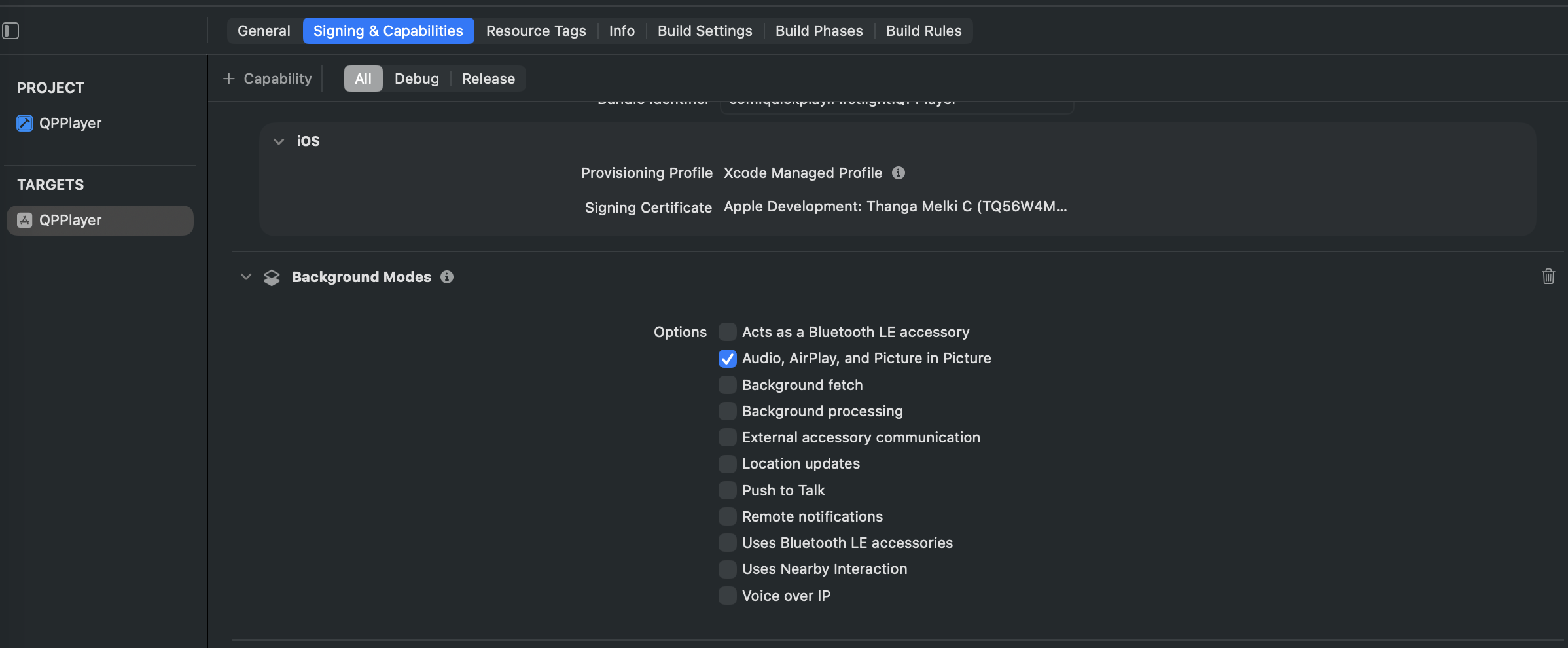
- Open your project in Xcode.
- Select your app target.
- Go to Signing & Capabilities.
- Add the Background Modes capability.
- Enable Audio, AirPlay, and Picture in Picture.
Enable PiP
Set this preference before calling player.play():
player.set(preferences: [.shouldSupportPIP(true)])
Start / Stop PiP
player.startPictureInPicture()   // starts PiP window
player.stopPictureInPicture()    // stops PiP window
Check availability before calling:
| Property | Description |
|---|---|
isPictureInPictureSupported | Device-level check — hardware and OS support PiP |
isPicureInPicturePossible | Player-level check — player is in a state that allows PiP |
isPictureInPictureActive | true while the PiP window is visible |
// To check device supports PiP, if it supports start PiP.

if player.isPictureInPictureSupported,
   player.isPicureInPicturePossible {   // player is ready to enter PiP
    player.startPictureInPicture()
}

// Check if PiP is currently active and stop pip

if player.isPictureInPictureActive {
    player.stopPictureInPicture()
}
Delegate Callbacks
Available from @available(tvOS 14.0, *).
| Callback | When It Is Called |
|---|---|
playerDidStartPictureInPicture | PiP window has appeared |
playerDidStopPictureInPicture | PiP window was dismissed |
playerDidFailToStartPictureInPicture | PiP failed to launch |
restoreUserInterfaceForPictureInPictureStopWithCompletionHandler | User tapped the expand button on the PiP window |
func playerDidStartPictureInPicture() {
    // PiP window is now visible
    // tvOS: dismiss the player screen here to allow the user to select next content
}

func playerDidStopPictureInPicture() {
    // PiP window was closed
    // tvOS: if the player was not restored, clean up the player to release resources
}

func playerDidFailToStartPictureInPicture(with error: Error) {
    // PiP failed to start — handle error
}

func restoreUserInterfaceForPictureInPictureStopWithCompletionHandler(
    completionHandler: @escaping (Bool) -> Void
) {
    // User tapped expand on PiP window — re-present your player UI here, then call:
    // tvOS: if another player is already on screen, dismiss it first then re-present this player (swap)
    // tvOS: if no player is on screen, directly present this player (restore)
    completionHandler(true)
}
Disable Scrubbing in PiP
For live streams and ad playback, disable scrubbing in the PiP window:
player.requiresLinearPlayback = true
CSAI Ads
Pass shouldSupportPIP when creating the ad player:
let adPlayer = FLAdvertisingGoogleIMAFactory.adPlayer(
    contentPlayer: player,
    request: adRequest,
    playerViewController: vc,
    shouldSupportPIP: true   // set false to disable PiP during ads
)
Automatic PiP — Inline Playback (iOS 14.2+)
Triggers PiP automatically when the user leaves the app:
player.canStartPictureInPictureAutomaticallyFromInline = true